
Turn your gate designs into professional shop drawings. Add dimensions, spec blocks, arrows, and notes — then download in the format you need.
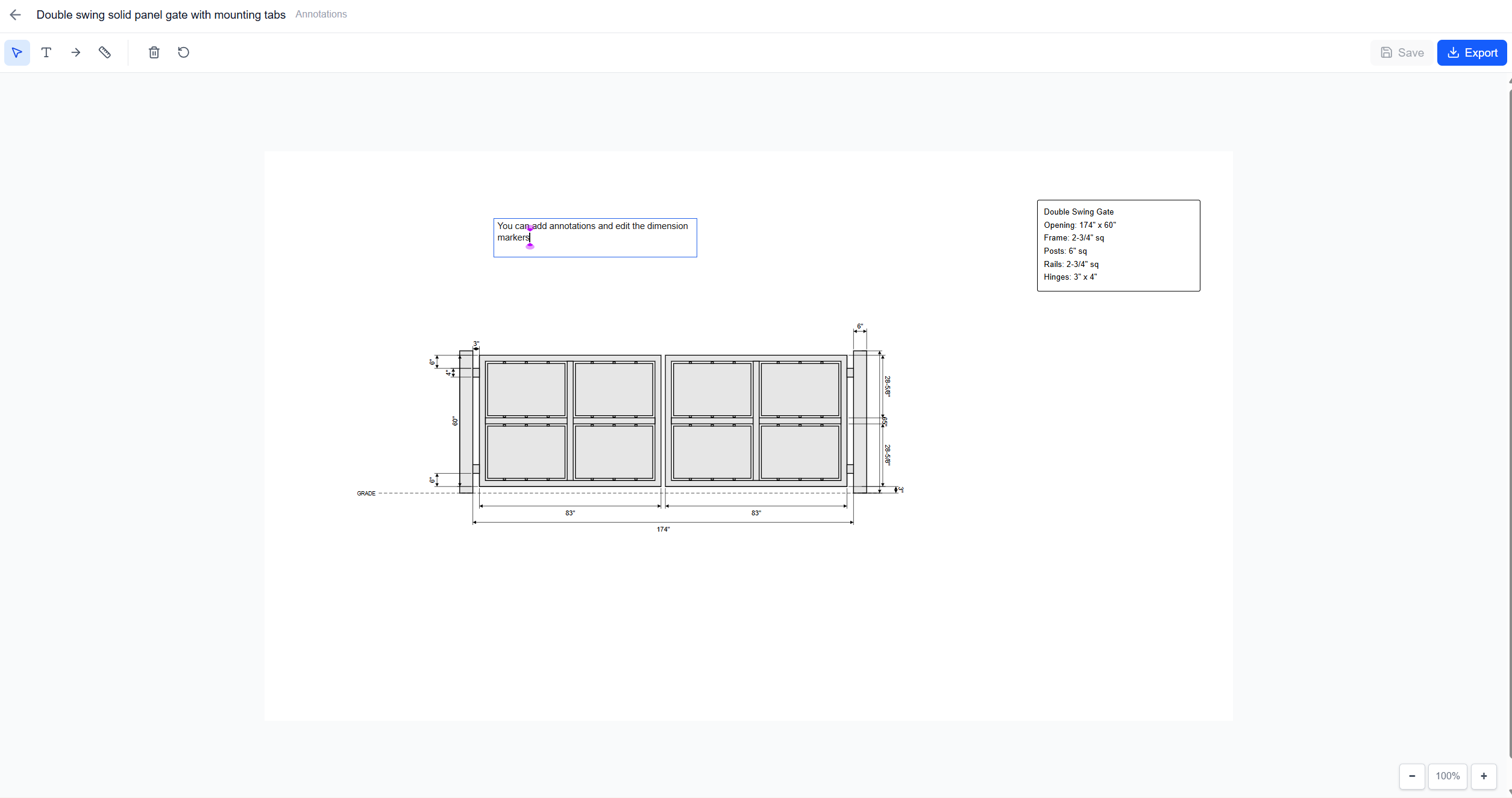
Dimensions are calculated automatically from your gate configuration — overall width, height, picket spacing, post sizes, and more. No measuring or manual entry required.
A specification block is generated automatically with gate type, opening dimensions, frame sizes, picket specs, and rail details. Double-click to customize the text.
Add custom text labels and arrows to call out specific details. Point out hinge locations, latch positions, decorative elements, or installation notes.
Draw your own dimension lines for measurements not covered by the auto-generated set. Values snap to the nearest 1/16" for fabrication accuracy.
SVG
Scalable vector graphics
PNG
High-res transparent image
JPEG
Compressed image for emails
Print-ready documents
DXF
CAD-compatible for shops
Click “Annotate” on any saved design from your dashboard.
Dimensions and spec block appear automatically. Add custom text, arrows, or dimensions as needed.
Download as SVG, PNG, JPEG, PDF, or DXF. Send to your customer or straight to the shop.
Want components in your drawings that aren't in the catalog? The fastest way is the DXF Converter: drop in a DXF and save it. If there's no DXF, trace from a photo instead.
Sign up for free and start designing. No credit card required.

Watch the complete 7:48 walkthrough — from logging in to exporting a fabrication-ready drawing with a full material list. Gates, fences, handrails, annotations, and AI generation, all covered.